





Guide
Laptops for Video Editing in 2026: The Best Options for Creative Professionals
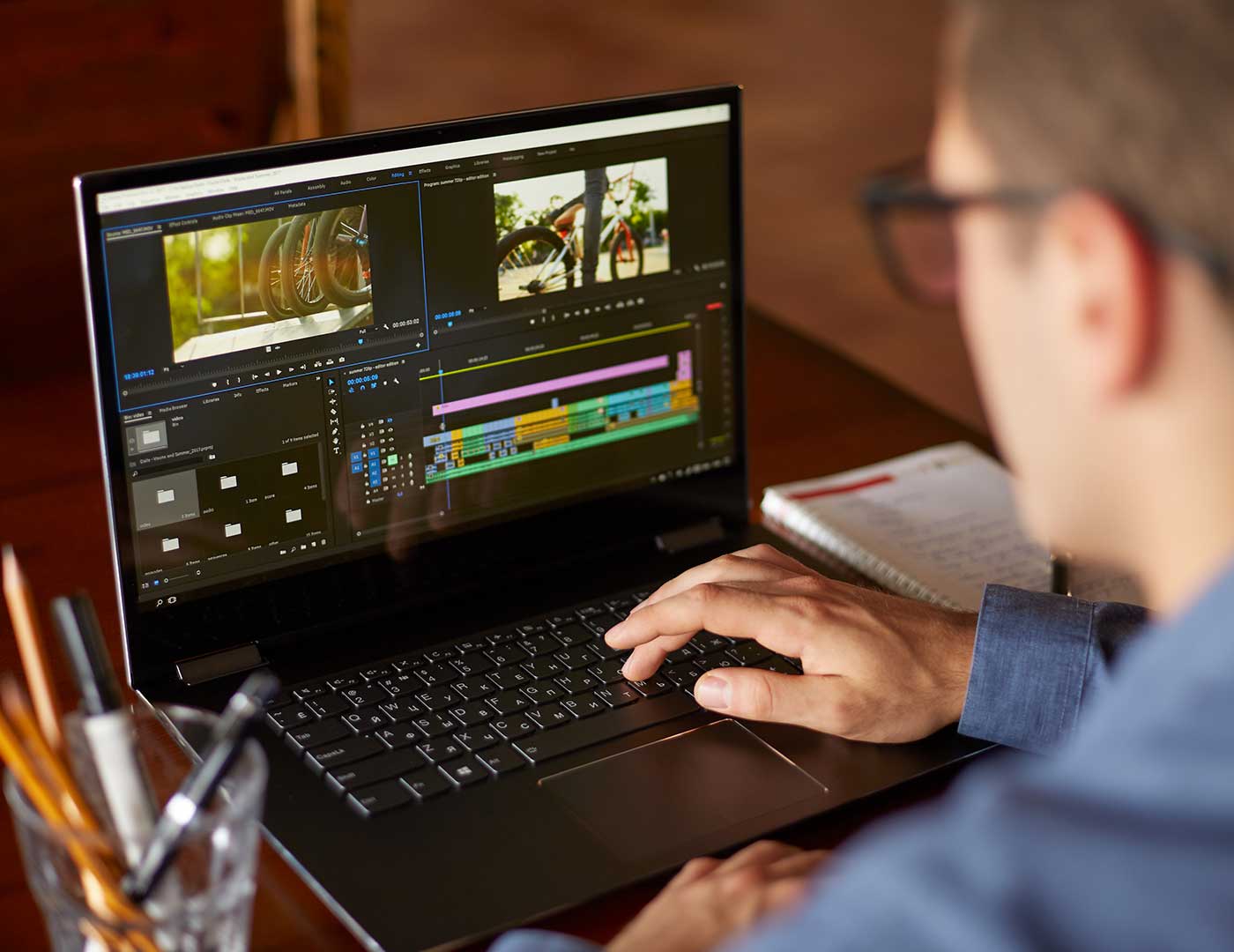
As of January 2026 – Anyone looking for a laptop for video editing in 2026 faces a decision that goes far beyond technical specifications. 4K and 8K footage, multi-track timelines, real-time colour correction, AI-powered tools and fast exports require a system in which every component works together. A powerful chip alone is of little use if the RAM, SSD or display becomes the bottleneck.
This guide explains which hardware really matters for video editing in 2026, which type of laptop suits which workflow and how the right configuration differs depending on resolution, software and project size – from simple Full HD clips and professional 4K productions to DaVinci Resolve and After Effects workflows. If you do not need the right device permanently, you can rent a laptop flexibly from get-IT-easy – ready to use and tailored to your project.
Which Laptop for Video Editing? The Short Answer First
For most users, the question “Which laptop should I use for video editing?” can be divided into three performance categories. If you simply want to know which type of device fits your requirements, this quick overview provides guidance:
- Entry Level & Full HD: Notebook with a current Core i5 / Ryzen 5 or Apple M chip, 16 GB RAM, 512 GB SSD. Sufficient for Reels, YouTube videos in 1080p and simple editing.
- 4K Video Editing & YouTube Professionals: Core i7 / Ryzen 7 or Apple Pro chip, 32 GB RAM, 1 TB SSD, dedicated GPU. The sweet spot for ambitious creators.
- Professional Post-Production: Core i9 / Ryzen 9 or Apple Max chip, 64 GB RAM, 2 TB SSD, powerful RTX GPU. For multicam, motion graphics and complex colour grading projects.
The following sections explain why these recommendations look this way and where compromises can become problematic.
What Makes a Good Laptop for Video Editing?
Video editing is one of the few workloads that places heavy demands on several notebook components at the same time: The CPU decodes and calculates, the GPU accelerates effects and previews, the RAM holds the timeline and cache, and the SSD needs to supply the raw data quickly enough. If even one of these components is underspecified, the entire workflow becomes sluggish.
A common mistake when choosing a device is to focus only on the processor or the price. In practice, however, the entire system matters. A laptop with a powerful CPU but only 16 GB of RAM can still struggle with 4K multicam editing. Conversely, a large amount of RAM offers little benefit if the GPU cannot accelerate effects. Anyone buying a laptop for video editing should therefore consider the complete workflow instead of focusing on one standout specification.
The Five Most Important Components at a Glance
| Component | Role in Video Editing | When It Is Particularly Important |
|---|---|---|
| CPU | Decoding, effect processing, export | Always – the foundation for smooth performance |
| GPU | Preview, effects, colour grading, AI tools | 4K, DaVinci Resolve, motion graphics |
| RAM | Timeline, cache, multiple tracks | Large projects, many layers |
| SSD | Loading times, media access, cache | 4K raw footage, large project files |
| Display | Assessment of colour and exposure | Colour grading, client projects |
Recommended Specifications by Use Case
Not every video editing laptop needs to have the maximum possible specifications. What matters is the footage you are editing and how complex the projects are. The following table shows which configuration fits which level of demand – providing specific buying guidance for each use case.
| Use Case | CPU | GPU | RAM | SSD | Suitable For |
|---|---|---|---|---|---|
| Full HD | Intel Core i5 / Ryzen 5 / Apple M Series | Integrated or entry-level GPU | 16 GB | 512 GB | Clips, Reels, simple YouTube videos |
| 4K Editing | Intel Core i7 / Ryzen 7 / Apple Pro chip | RTX 4060/4070 or Apple Pro chip | 32 GB | 1 TB | 4K timelines, colour correction, longer projects |
| Professional Workflow | Intel Core i9 / Ryzen 9 / Apple Max chip | RTX 4080/4090 or Apple Max chip | 64 GB+ | 1–2 TB+ | Multicam, effects, DaVinci Resolve, After Effects |
Processor: Why the CPU Is So Important for Video Editing
The processor is the foundation of every video editing workflow. It decodes the source material, calculates effects, manages several tracks simultaneously and plays a major role in export speed. Especially with compute-intensive codecs such as H.264 and HEVC or when using many transitions and titles, it quickly becomes clear whether the CPU can keep up.
For simple Full HD projects, a modern Core i5, Ryzen 5 or Apple M chip is sufficient. For 4K video editing, a Core i7, Ryzen 7 or Apple Pro chip is recommended. Anyone working daily with extensive timelines, multicam setups or 8K footage should choose a Core i9, Ryzen 9 or Apple Max chip. Our comparison of Intel Core Ultra, AMD Ryzen and Snapdragon X in everyday laptop use shows how current mobile platforms perform in practice.
Media Engine in Apple Chips
An often underestimated advantage of modern Apple chips is the integrated Media Engine. It accelerates the decoding and encoding of H.264, HEVC, ProRes and ProRes RAW directly in hardware. Anyone working extensively with ProRes footage – for example from professional cameras – benefits from noticeably smoother previews and faster exports, even with comparatively moderate power consumption. For mobile creative work, this is a strong advantage. If you want to benefit from this, you can rent a MacBook Pro M4 Max 16″ from get-IT-easy.
Graphics Card: When Does a Laptop for Video Editing Need a Powerful GPU?
In video editing, the GPU handles much more than simply displaying images. Preview rendering, effects, transitions, colour correction, stabilisation and increasingly AI features such as automatic object removal or noise reduction are GPU-accelerated. The more powerful the graphics unit, the smoother the timeline and the shorter the export times.
For basic Full HD editing, the integrated graphics of modern processors are often sufficient. As soon as 4K footage, multiple effect layers or DaVinci Resolve are involved, however, a dedicated GPU becomes essential. On Windows, NVIDIA GeForce RTX cards are the preferred choice because virtually all relevant editing applications make excellent use of CUDA and GPU acceleration.
Why Gaming Laptops Are Suitable for Video Editing
Gaming notebooks include exactly the components that video editing also requires: powerful processors, dedicated RTX graphics, plenty of RAM, fast SSDs and effective cooling. A gaming laptop is therefore often one of the most cost-effective ways to access strong GPU performance for Premiere Pro, DaVinci Resolve or Blender. Models such as the Lenovo Legion Slim 5 or the powerful XMG NEO 16 can be rented on a project basis. The only important point is to choose a display with accurate colour reproduction – some gaming models compromise here in favour of high refresh rates.
RAM: How Much Memory Does Video Editing Need?
RAM determines how much data the system can keep available at the same time. Too little RAM can quickly lead to stuttering previews, long loading times and constant reloading of media in complex timelines.
- 16 GB: sensible minimum for Full HD editing and simple projects.
- 32 GB: standard for 4K video editing, multiple tracks and colour correction.
- 64 GB and more: for After Effects, DaVinci Resolve Fusion, multicam and very large raw files.
It is important to understand that more RAM does not automatically make individual tasks faster, but it provides significantly more stability in demanding projects. On Apple devices, Unified Memory is particularly efficient because the CPU and GPU access the same memory – in many cases, 32 GB can be sufficient where a Windows system might require 64 GB.
SSD and Storage: Why Fast Drives Can Save Your Workflow
Video footage consumes a lot of storage. 4K raw files, proxy files, cache, project files and finished exports can quickly occupy several hundred gigabytes. An SSD that is too small or too slow becomes a bottleneck that slows down the entire editing process.
- 512 GB: minimum capacity, realistically only practical with external storage.
- 1 TB: recommended for regular video editing.
- 2 TB and more: for professional projects and extensive media libraries.
Speed is just as important as capacity. A fast NVMe SSD significantly reduces loading times, cache access times and the time needed to import large files. For backups, archiving and transporting projects, external SSDs with Thunderbolt or USB-C connections are also recommended.
Display: Resolution, Brightness and Colour Accuracy
For video editing, the display is not merely a comfort feature but a working tool. Anyone who wants to assess exposure, contrast and colours accurately needs a panel with wide colour gamut coverage and good viewing angle stability. Four factors are particularly important:
- Resolution: For 4K editing, a high-resolution display is more comfortable because it provides more space for the timeline and preview.
- Colour gamut: At least 100% sRGB, with DCI-P3 coverage recommended for professional work.
- Brightness: 400 nits or more for HDR assessment and working in bright environments.
- Panel type: OLED or Mini-LED for deep blacks and high contrast.
For serious colour grading, an additional colour-calibrated external monitor is worthwhile. A second, larger display creates space for the timeline, preview and tool windows – a major improvement in clarity when working on extensive projects. Suitable monitors can also be rented flexibly; our guide to monitors for video editing explains what to look for.
Windows or macOS: Which Is Better for Video Editing?
Both platforms deliver excellent results. The right choice depends on software, budget and working style.
| Criterion | macOS (MacBook) | Windows Laptop |
|---|---|---|
| Software Strength | Final Cut Pro, ProRes, Premiere Pro | Premiere Pro, DaVinci Resolve, After Effects |
| Efficiency & Battery | Very high thanks to Apple Silicon | Lower, especially under GPU load |
| GPU Selection | Fixed to the Apple chip | Large selection of RTX cards |
| Price-Performance Ratio | Higher entry price | Wide range, often more affordable |
| Upgradeability | Hardly upgradeable | RAM/SSD partially upgradeable |
In short: macOS is strong for efficient mobile creative work and Final Cut/ProRes workflows. Windows stands out through its wide device selection, powerful RTX GPUs and flexible price-performance ratio – ideal for Premiere Pro, DaVinci Resolve and graphics-intensive applications. Our article Apple vs. Windows in use provides a detailed comparison.
Video Editing: Laptop or PC?
A valid question before making a purchase. A desktop PC offers more raw performance for the same budget, better cooling and easier upgrades. A laptop, on the other hand, enables mobile work – at a client’s location, on the move or on set. For most creators and agencies, a powerful laptop is now the more practical choice because modern chips have largely closed the performance gap with desktops. Anyone who works exclusively at a fixed workstation and wants maximum performance per euro is better served by a PC – for example with a rentable workstation. Anyone who needs flexibility should choose a notebook and add an external display and docking station if required.
Software: Which Programs Are Important for Video Editing?
The choice of hardware is closely linked to the software being used. The four most important applications have different priorities:
- Adobe Premiere Pro: The industry standard for editing. Runs on Windows and macOS and benefits greatly from GPU acceleration – ideal for YouTube, social media and agency projects.
- DaVinci Resolve: A leader in colour grading, combining editing, colour, audio and effects. Particularly GPU-intensive – a powerful RTX card is worthwhile here.
- Final Cut Pro: Exclusive to macOS, extremely efficient on Apple Silicon and ideal for ProRes workflows.
- After Effects: For motion graphics, compositing and animation – RAM- and CPU-intensive.
A laptop that is perfect for Premiere Pro can reach its limits in compute-intensive DaVinci Resolve projects. The software should therefore be decided before purchasing the hardware.
Best Laptops for Video Editing in 2026: Which Device Types Are Suitable?
There is no single best laptop for video editing – the ideal choice depends on the workflow. Four device categories cover the most common requirements:
MacBook Pro – for Creative macOS Workflows
Models with Pro or Max chips deliver high performance with excellent efficiency, a colour-accurate display and very smooth ProRes processing thanks to the Media Engine. They are the first choice for editors who work with Final Cut Pro or use Premiere Pro on the move and value long battery life. The MacBook rental selection includes suitable devices for every requirement, from the MacBook Pro M4 14″ to the most powerful Max model.
ASUS ROG & High-End Gaming Laptops – for GPU-Intensive Projects
The combination of a powerful CPU, RTX graphics and effective cooling makes these devices ideal for DaVinci Resolve, 4K rendering and effects-heavy timelines. For graphics-intensive post-production, they are often the most powerful Windows option – for example a rentable ASUS ROG.
Gaming Laptop – The Price-Performance Recommendation for Video Editing
Gaming notebooks offer plenty of performance for the money and are excellent for Windows workflows, 4K editing, effects, AI tools and rendering. When buying, pay attention to display quality and colour accuracy. The Lenovo Legion 5 is also a solid rental option in this category.
Business Notebook – for Simple Video Projects
For Full HD editing, training videos, interviews or social media clips, a solid business notebook with at least 16 GB of RAM, a fast SSD and a good display is sufficient – compact, lightweight and practical for everyday use.
Comparison: Which Laptop Type Fits Which Video Editing Workflow?
| Laptop Type | Strengths | Suitable For | What to Look For |
|---|---|---|---|
| MacBook Pro | Efficiency, display, ProRes, macOS | Final Cut Pro, Premiere, mobile creative work | RAM, chip variant, SSD size |
| ASUS ROG | GPU performance, cooling, Windows flexibility | 4K editing, rendering, DaVinci Resolve | RTX GPU, RAM, noise level, mains operation |
| Gaming Laptop | High performance, powerful GPU, good price-performance ratio | Effects, AI tools, 3D, video editing | Check display quality and battery life |
| Business Laptop | Mobility, easy operation, everyday usability | Full HD editing, training videos, clips | At least 16 GB RAM and fast SSD |
4K Video Editing: What You Should Pay Particular Attention To
A laptop for 4K video editing needs significantly more performance reserves than a Full HD device. As a baseline, 32 GB of RAM, a fast NVMe SSD, a powerful CPU and a dedicated GPU are recommended. However, hardware is not the only factor:
- Codec: Long-GOP formats such as H.265 place a heavier load on the system than All-Intra codecs or ProRes. The source material has a major influence on the required performance.
- Proxy workflow: For very large 4K or 8K files, it can be worthwhile to edit using lower-resolution proxies and switch back to the original footage only for export – this keeps the timeline smooth even on less powerful devices.
- Cooling: Long 4K exports create sustained loads. Devices with good cooling maintain stable performance instead of throttling.
If you regularly edit in 4K, you should not specify the hardware too conservatively. A more powerful device saves noticeable time during previews, stabilisation, colour correction and export – which can quickly pay off in professional projects.
Accessories for a Productive Video Editing Workstation
The laptop is the foundation, but the right accessories can take the workflow to another level:
- External monitor: More space for timeline and preview, ideally colour calibrated.
- External SSDs: For raw footage, backups and transporting projects.
- Docking station: Connects displays, storage and peripherals through a single cable.
- Card reader: Fast import directly from the camera.
- Studio headphones & mouse/keyboard: Precise audio assessment and ergonomic working during long sessions. Suitable laptop accessories are also available to rent.
Rent a Laptop for Video Editing: When Flexible Use Makes Sense
Buying an expensive high-end notebook is not always worthwhile. For one-off productions, events, training sessions or short-term agency projects, it is often more economical to rent powerful hardware on a project basis. At get-IT-easy, devices can be rented for as little as one day, individually configured and delivered ready to use. This also makes it possible to test which configuration truly meets your requirements before making a larger investment – while avoiding overinvesting in high-end technology for a single project.
For professional video and creative projects, MacBooks, gaming laptops, displays and suitable accessories are available flexibly, ensuring that the right hardware is available exactly when it is needed. You can read more about the advantages of renting instead of buying in our article Rent Company Laptops Instead of Buying Them.
Frequently Asked Questions About Laptops for Video Editing
Which Laptop Is Best for Video Editing?
The best laptop depends on the footage. For Full HD projects, a notebook with a current Core i5/Ryzen 5 or Apple M chip and 16 GB of RAM is sufficient. For 4K video editing, 32 GB of RAM, a Core i7/Ryzen 7 or Apple Pro chip, a fast SSD and a dedicated GPU are recommended. For professional post-production, MacBook Pro models with Max chips, high-end gaming laptops or mobile workstations are suitable.
How Much RAM Does a Laptop Need for Video Editing?
16 GB is a sensible minimum for simple Full HD projects. For 4K editing, 32 GB is considered standard. Anyone working with many tracks, effects, DaVinci Resolve, After Effects or large raw files should plan for 64 GB or more.
Do I Need a Dedicated Graphics Card for Video Editing?
For simple Full HD projects, integrated graphics are usually sufficient. For 4K editing, effects, colour grading, AI features and especially DaVinci Resolve, a dedicated GPU is very useful. NVIDIA GeForce RTX cards or powerful Apple chips are ideal here.
Is a MacBook or Windows Laptop Better for Video Editing?
Both are well suited. A MacBook performs particularly well with macOS, Final Cut Pro, ProRes and efficient mobile creative work. Windows laptops offer more model choices, powerful RTX GPUs and flexible configurations for Premiere Pro, DaVinci Resolve and other applications – often with a better price-performance ratio.
Is a Gaming Laptop Good Enough for Video Editing?
Yes, gaming laptops are very well suited. They offer powerful processors, dedicated RTX graphics, plenty of RAM and fast SSDs – often at a lower price than comparable creative notebooks. A display with good colour accuracy is important, as some gaming models place less emphasis on this.
Which Laptop Is Suitable for 4K Video Editing?
For 4K, a laptop should offer at least 32 GB of RAM, a fast NVMe SSD, a powerful CPU and a dedicated GPU. For professional projects, 64 GB of RAM, a 2 TB SSD and a colour-accurate display are recommended. Proxy workflows can help with very large files.
Can I Edit Videos with an Affordable Laptop?
Yes, simple videos can also be edited on more affordable laptops. For short Full HD clips, simple cuts and social media videos, a solid device with 16 GB of RAM is sufficient. For 4K, effects, colour correction and long timelines, the laptop should be significantly more powerful.
Video Editing: Laptop or PC – Which Is Better?
A PC offers more performance for the same budget, better cooling and easier upgrades. A laptop stands out for mobility. For creators and agencies that need to work flexibly, a powerful laptop is usually the more practical choice because modern chips have largely closed the performance gap.
Conclusion: The Best Laptop for Video Editing Depends on the Workflow
A laptop for video editing should not be selected based on brand or price, but according to footage, resolution, software and project size. For Full HD editing, a solid notebook with 16 GB of RAM is sufficient. For 4K video editing, 32 GB of RAM, a powerful CPU, a fast SSD and a dedicated GPU are the right standard – with correspondingly higher specifications for professional post-production.
MacBooks stand out through efficiency, strong displays and excellent integration into Apple creative workflows. Windows and gaming laptops offer powerful GPU performance, a wide selection and strong value for money for graphics-intensive tasks.
The first step should therefore always be to define your own workflow: Which resolution, which software, how complex are the projects? Based on this, the choice between MacBook Pro, ASUS ROG, gaming laptop or business notebook becomes much easier – and for one-off or short-term projects, renting suitable laptops from get-IT-easy remains the most flexible solution.
Read more - You may also be interested in
Would you like to delve deeper into the topic or discover similar content? Below, we have compiled three additional articles for you that are thematically related to this article. These may also be relevant and interesting for your company.

Leasing Solutions for Businesses
Rental vs. Buying Trade Show and Event Hardware: Costs, Flexibility, and Typical Setups for Businesses
Rental of trade show and event equipment instead of buying it: Cut costs, stay flexible,
Sep

Leasing Solutions for Businesses
Bring-Your-Own-Device vs. Rented Devices: When Each Strategy Is Worth It for Doctoral Programs
BYOD or Rented Devices? 📱 Find out which strategy is best for promotions in 2026—considering
Aug
Leasing Solutions for Businesses
TV/Display Rentals for Trade Show Booths & Events: Resolution, Mounts/Stands, Setup & Data Protection
TV and Display Rentals for Trade Show Booths and Events: Tips on resolution, mounts, stands,
Aug

Guide
Transfer Data Quickly Between PCs Without a USB Drive: Simple Methods for Event Teams
Transfer data quickly between PCs without a USB drive: simple, secure methods for event teams—from
Aug

Technology Trends
EUDI Wallet & Digital Identities: Potential Applications for Check-In, Access Control, and Verification at Events
EUDI Wallet at Events: Digital identities for fast check-in, secure access control, and reliable verification.
Aug
Sustainability
Making Packaging & Logistics Sustainable: Reusable Shipping Containers, Return Shipping Processes, and CO2 Reduction
📦 Making Packaging & Logistics Sustainable: Reusable shipping boxes, efficient return processes, and lower CO₂
Aug

Technology Trends
5G & Alternative Event Internet: Wi-Fi/5G Setup, VoWiFi, and Stratospheric Internet—What’s Realistic?
A Look at Internet for Events in 2026: 5G, Wi-Fi Setup, VoWiFi, and Stratospheric Internet.
Jul

Guide
Secure Wi-Fi on the Go & at Events: Which Smartphone/Hotspot Features You Should Disable and Why
Secure Wi-Fi on the Go & at Events: These Smartphone & Hotspot Features You Should
Jul