





Guide
Secure Wi-Fi on the Go & at Events: Which Smartphone/Hotspot Features You Should Disable and Why
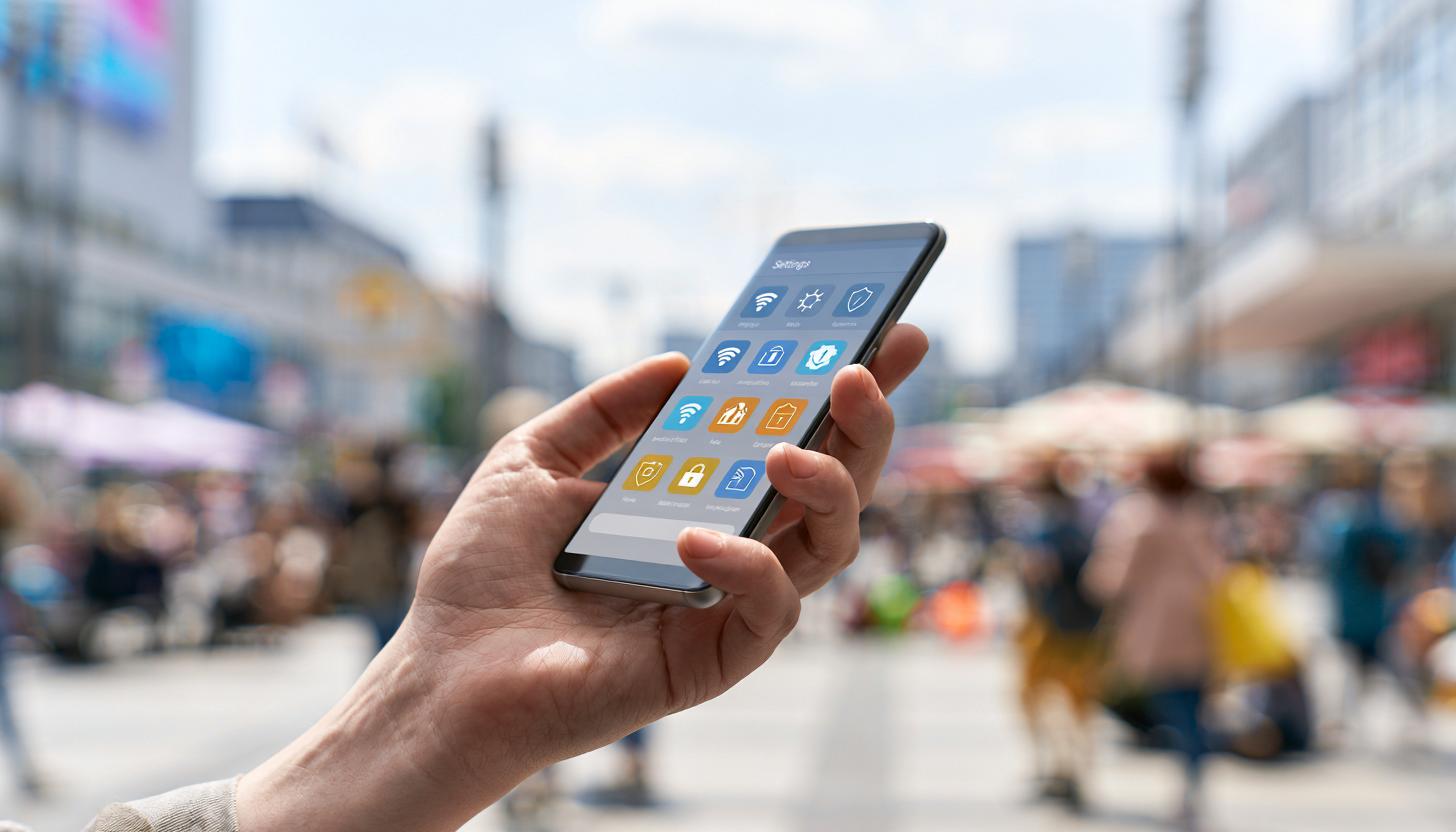
Secure Wi-Fi on the Go & at Events: Which Smartphone and Hotspot Features You Should Turn Off—and Why
Whether it’s a trade show, roadshow, conference, pop-up store, field service appointment, or temporary project office: Anyone who works on the go almost always relies on wireless connections. Yet this is precisely where many unnecessary risks arise. Especially in public settings, smartphones, tablets, mobile routers, and hotspots are often used with default settings that prioritize convenience over maximum security. For companies, agencies, event organizers, and IT teams, this is a critical issue, because a compromised device can quickly become a gateway for data leaks, account misuse, or disruptions to ongoing operations.
The topic of Wi-Fi security on the go is more relevant than ever. While modern devices offer better security standards than they did just a few years ago, the number of potential vulnerabilities has also increased. Automatic network discovery, file sharing, Bluetooth pairing, AirDrop-like features, location services, saved login credentials, and open captive portals at events make mobile setups convenient, but not automatically secure. Clear rules are especially needed in B2B scenarios involving loaner devices, hotspots set up on short notice, and many rotating users.
In this article, we’ll show you which smartphone and hotspot features you should disable while on the go and at events, why doing so makes sense, and how companies can make their mobile infrastructure significantly more secure. This article is aimed particularly at companies that use smartphone rentals, use tablets on a temporary basis, or need mobile Wi-Fi solutions for events and projects.
Why Wi-Fi Security on the Go Is So Important for Businesses
Public or temporary wireless networks are among the most common risk factors in everyday mobile work. At trade shows, in hotels, train stations, airports, or event venues, many people share the same infrastructure. It’s often unclear who set up the network, how secure it is, and whether it includes fake access points. Such fake hotspots often appear legitimate to users and use names like “Event Guest,” “Free WiFi,” or the name of the venue.
This is attractive to attackers. Anyone who logs into a compromised network or connects unnoticed to an unsecured access point may expose sensitive information. This includes logins, session data, emails, cloud content, or internal project information. Furthermore, it’s not just the Wi-Fi itself that poses a risk. Features on mobile devices that constantly scan for networks, devices, or shared resources also significantly increase the attack surface.
In a corporate setting, the situation is further complicated by time pressures and device changes. At events, devices must be up and running quickly. In the field, connections are often made on the fly. It is precisely in these situations that security settings remain at their factory defaults or convenience features are left enabled—features that pose fewer problems in controlled office environments than they do on the go.
These smartphone features should often be turned off when you’re on the go
Many modern smartphones are designed by default for seamless connectivity. This is convenient, but not always secure. If you want to improve Wi-Fi security while on the go, you should check these features in particular and disable them as needed in high-risk environments. This is especially true when current devices, such as a Samsung Galaxy S24, are used as event, sales, or project devices.
- Automatic Connection to Known or Open Wi-Fi Networks
Smartphones save networks and sometimes reconnect to them automatically. This becomes a problem when attackers mimic a network with an identical name. In such cases, the device may recognize only the SSID and connect, even though it is not the original network. - Leaving Wi-Fi and Bluetooth On All the Time
Both wireless standards regularly send and receive signals. This increases the device’s visibility and can be exploited for tracking, spoofing, or unwanted pairing attempts. If you don’t need these features at the moment, you should turn them off. - AirDrop, Quick Share, Nearby Share, or similar file-sharing services
These services make it easy to share files quickly, but at events where many devices are within range, they can lead to unwanted contact attempts and accidental file sharing. For productive B2B use, they should only be enabled briefly when necessary. - Personal hotspot set to “visible” or “open”
If a hotspot is left active unnecessarily, it becomesvisible to third parties. In the worst-case scenario, this can lead to unauthorized connection attempts, data usage, or attacks targeting poorly secured settings. - Automatic sharing of files, media, or network devices
Invisible sharing paths can arise, particularly with tablets and laptops used in combination with smartphones. Anyone working on the go should always limit sharing to what is absolutely necessary. - Location Services for Wi-Fi and Bluetooth Scans
Many systems use network scans for location tracking. While this is functional, it increases the amount of information transmitted and analyzed. At events involving sensitive projects or customer data, the sharing of this information should be deliberately limited.
Hotspot Security: Which Features on Mobile Routers and Tethering Devices Are Critical
Not only smartphones themselves, but also mobile Wi-Fi routers and MiFi devices are frequently used in event and project settings. They are particularly popular in the rental of mobile devices because they quickly provide a local network. To ensure this does not become a security vulnerability, certain functions should be checked before use. The key factor here is not only the hardware but also the appropriate connectivity, such as through professionally configured SIM cards for mobile devices.
| Function | Why Disable or Restrict | Recommendation for B2B use |
|---|---|---|
| WPS | Simplifies the login process, but has been problematic and unnecessary from a security standpoint for years | Disable completely |
| Default SSID and Default Password | Manufacturer specifications or generic names reveal the device type and are easy to guess or look up | Set a custom SSID and a strong password |
| Open guest network without segmentation | Users may be able to access other clients or internal services | Use client isolation and separate networks |
| Remote Maintenance via the Internet | Significantly increases the attack surface if not strictly secured | Activate only when truly necessary; otherwise, keep it disabled |
| UPnP | Can automatically open ports and expose services to the outside world | Usually disable in event mode |
| Visible admin interface with standard access | Gateway for tampering or network outages | Change admin credentials and allow access only internally |
| Outdated Encryption | Older standards are vulnerable or no longer up to date | Use WPA3; alternatively, use WPA2 Enterprise or a strongly configured WPA2 |
Disabling WPS: A Small Convenience, a Big Risk
WPS is still occasionally offered as a way to easily connect devices to Wi-Fi with the push of a button or by entering a PIN. In professional environments, this is hardly state-of-the-art anymore. The feature saves only a few seconds but creates additional attack vectors. In event networks with many devices and rotating teams, there is no good reason to leave WPS enabled. A properly documented password or centralized device management is the better solution.
Restrict automatic reconnection to specific networks
One topic that is often underestimated is the list of saved Wi-Fi networks on smartphones and tablets. Rented devices or project devices, in particular—which have already been used in many locations—accumulate numerous networks over time. This increases the risk of unintended connections. In professional setups, networks that are no longer needed should be deleted regularly. It’s even better to reconfigure devices for events in advance or restore them to a defined state using mobile device management.
This is particularly relevant at trade shows and conferences. There are often several networks with similar names, such as those for exhibitors, visitors, technical staff, or the press. A device that connects automatically can quickly end up in the wrong segment. This can not only cause security issues but also disrupt applications that rely on a specific network.
Turn on Bluetooth only when you really need it
Bluetooth is often overlooked because many employees need it for headsets, scanners, keyboards, or presentation devices. Nevertheless, Bluetooth should not be left on all the time. In high-traffic environments, the protocol can be exploited for unwanted device detection, tracking, or suspicious pairing requests. Modern systems have protective mechanisms, but the safest measure remains: turn it off when no accessories need to be connected.
For event teams, this means, in practical terms: Especially at information counters, ticket counters, registration desks, and exhibition booths, they should determine which devices actually require Bluetooth. Where wired or permanently paired solutions are possible, the risk is reduced—and often so is the likelihood of errors.
Do not leave file shares and local area functions open permanently
Features like AirDrop, Quick Share, Nearby Share, and similar solutions are useful in meetings or for small teams. In public settings, however, they are often more of a distraction. Devices become visible to others, leading to unwanted requests or employees accidentally sharing content with the wrong recipients. This is particularly sensitive when it comes to company documents, price lists, presentations, or customer data.
The recommendation is clear: Limit visibility, allow access only to contacts or known devices, and disable the feature after use. For larger teams, a centralized file storage system using secure business tools is usually a better choice than ad-hoc sharing via the near-field communication feature.
Personal Hotspot: Convenient, but Use It Sparingly
Smartphone tethering is a quick workaround when no other network is available. However, when used for business purposes, it should be configured professionally. Hotspots are often secured too poorly, left active for too long, or given easily recognizable device names. This makes them visible to third parties and increases the likelihood of unauthorized connection attempts.
It is important to use a strong, unique password, an inconspicuous SSID that does not include company or personal names, and to turn off the hotspot as soon as it is no longer needed. In addition, the maximum number of allowed clients should be limited. This reduces the risk of additional devices connecting accidentally or of a hotspot being unnecessarily overloaded. Those who prefer a full-featured 2-in-1 device over traditional smartphone tethering can also take advantage of rental options for a Surface Pro 10 and manage connectivity more centrally.
Encryption and Standards: What Should Be Considered the Minimum Standard Today
When it comes to Wi-Fi security on the go, it’s not just about disabling extra features—it’s also about ensuring the network’s basic security. For mobile routers, event Wi-Fi solutions, and modern devices, WPA3 should be the preferred standard whenever possible. Where compatibility with older devices is absolutely necessary, at least a properly configured WPA2 solution with a strong password, regular rotation, and clear access rules must be used.
Network segmentation is equally important. Visitors, service providers, internal teams, and technical systems should not operate on the same wireless network. Client isolation prevents end devices from communicating directly with one another. This is particularly useful for registered visitor devices, self-service stations, check-in tablets, or demo smartphones.
Equipment Management and Preparation: The Major Advantage of Professional Rental Equipment
Many security issues don’t arise on-site, but long before that. When companies bring personal or unprepared devices to events on short notice, these devices often come with legacy issues. These include outdated network profiles, questionable apps, unchecked permissions, or missing updates. This is precisely where professionally prepared rental devices can offer a significant advantage.
With B2B leasing of mobile devices, smartphones, tablets, and mobile hotspots can be provided in a predefined state. This means, for example, up-to-date software, a clean network configuration, unnecessary features disabled, uniform security policies, and, upon request, mobile device management. For companies, this reduces the workload on the IT department while simultaneously minimizing risks during event operations.
- Consistent Device Configuration for Teams and Locations
- Risk features such as WPS, open sharing, or auto-join options are disabled by default
- Up-to-date operating systems and security updates
- Temporary use without legacy issues from previous deployments within the company
- SIM, hotspot, and Wi-Fi profiles prepared upon request for events, trade shows, and rollouts
A standardized approach is particularly worthwhile when several dozen or hundreds of devices are in use. This applies equally to promotions, registration processes, digital visitor guidance, mobile point-of-sale systems, inventory management, sales campaigns, and trade show communications. For tablet-based workflows, many companies rely on rental iPads or production-ready Windows devices such as the Surface Pro.
Using Tablets Safely at Events: Configuring iPads and Surface Devices Correctly
Tablets, in particular, play a central role at events: as check-in devices, presentation surfaces, point-of-sale solutions, or sales tools. That’s why unnecessary wireless and sharing features should be thoroughly reviewed here as well. For example, those working with Apple should specifically restrict AirDrop, automatic Wi-Fi connections, and unused app permissions. For many event formats, a lightweight device like the 11-inch iPad Air M2 is a practical solution.
If larger displays are needed for presentations, consultations, or data collection, a 13-inch iPad Air M2 can be a good choice. It’s always important to ensure that the tablet you use is not only powerful but also properly preconfigured. This applies equally to both Apple and Microsoft.
Mobile Data Instead of Open Wi-Fi: Often the Safer Alternative
In many cases, it makes more sense to avoid public Wi-Fi networks altogether and rely on mobile data connections instead. This significantly reduces the risk posed by tampered access points, misconfigured guest networks, or nosy third parties on the same network segment. This is often the more stable and secure approach, especially for business-critical applications, login systems, point-of-sale (PoS) solutions, or cloud access.
For events with high data requirements, an unlimited data SIM card can be a practical solution. This allows devices to operate independently of local Wi-Fi without having to constantly worry about data limits while using them.
Other Relevant Safety Considerations While Traveling and at Events
In addition to disabling certain features, there are other factors that are important for secure mobile connectivity. These include the consistent use of VPN solutions when accessing internal systems, unless specially secured corporate access points are used. Multi-factor authentication also remains essential. Even if login credentials were to be intercepted on an unsecured network, a second factor significantly reduces the risk of misuse.
Charging ports and public USB stations should also be handled with caution. Whenever possible, devices should be charged using personal power adapters or secured charging adapters. For event equipment, a clearly defined charging and storage system is recommended. Physical security is part of IT security. An unlocked smartphone left on a counter is just as problematic as an unsecured Wi-Fi network.
Then there’s the issue of data protection. Many apps request permissions related to Wi-Fi, Bluetooth, or location that aren’t necessary for their actual business purpose. Before using an app at an event, you should review its permissions and remove any unnecessary ones. This reduces data leakage and improves transparency.
Practical Recommendation for Companies: Less Convenience, More Control
The most important lesson isn’t that mobile work is unsafe. Rather, it’s about not blindly trusting default settings. Today’s smartphones and hotspots are powerful and significantly more secure than they used to be. But they must be configured appropriately for the specific use case. In the office, some things may not be critical. On the go, at events, or in publicly accessible locations, the situation is different.
Companies should therefore determine before every mobile deployment which features are truly needed and which should remain disabled. This provides clarity and reduces the risk of downtime and security breaches, especially in temporary setups involving rented devices, external event technology, or multiple service providers. Using professionally configured mobile devices and hotspot solutions saves time internally while also creating a cleaner, more manageable infrastructure.
FAQ
What’s the first feature I should check on my smartphone when I’m on the go?
The most important one is usually the feature that automatically connects to known or open Wi-Fi networks. This convenient feature can cause the device to connect to a spoofed network without you noticing.
Is Bluetooth generally unsafe at events?
Not generally, but it should only be turned on when it’s really needed. In crowded environments, keeping Bluetooth on all the time increases the device’s visibility and creates additional vulnerabilities.
Should a personal hotspot always be hidden?
Not necessarily, but a discreet SSID, a strong password, and a short active period are recommended. For professional use, preconfigured mobile routers are often the better solution.
Is WPA3 mandatory today?
It’s not mandatory in every scenario, but it’s clearly the preferred choice if all devices in use are compatible. Where that’s not possible, you should at least use a strong WPA2 configuration with proper network segmentation.
Why are rental devices for events often more secure than personal devices used on the fly?
Because they can be set up according to standardized procedures. This includes the latest updates, defined security policies, removal of legacy software, vetted apps, and appropriate network settings for the specific use case.
Conclusion
Wi-Fi security on the go is not a niche topic, but a key requirement for mobile business processes, events, and temporary work environments. Many risks arise from features that seem convenient in everyday use but can be problematic when on the go. These include Auto Join, WPS, open file sharing, Bluetooth that’s always on, and uncontrolled tethering.
Anyone who uses smartphones, tablets, and hotspots in a professional setting should manage these functions carefully and avoid deploying devices with default settings in sensitive environments. Thorough preparation is especially important in the B2B and event sectors. Professionally provided rental devices and mobile network solutions help strike a balance between security, stability, and user-friendliness.
If you need mobile devices and hotspots for trade shows, roadshows, registration processes, field service, or temporary projects, it’s worth reaching out to a specialized rental partner. This way, you’ll not only get the right hardware, but—if desired—also a preconfigured, standardized, and security-focused setup that works reliably in live operations.
Read more - You may also be interested in
Would you like to delve deeper into the topic or discover similar content? Below, we have compiled three additional articles for you that are thematically related to this article. These may also be relevant and interesting for your company.

Leasing Solutions for Businesses
Rental vs. Buying Trade Show and Event Hardware: Costs, Flexibility, and Typical Setups for Businesses
Rental of trade show and event equipment instead of buying it: Cut costs, stay flexible,
Sep
Leasing Solutions for Businesses
Bring-Your-Own-Device vs. Rented Devices: When Each Strategy Is Worth It for Doctoral Programs
BYOD or Rented Devices? 📱 Find out which strategy is best for promotions in 2026—considering
Aug
Leasing Solutions for Businesses
TV/Display Rentals for Trade Show Booths & Events: Resolution, Mounts/Stands, Setup & Data Protection
TV and Display Rentals for Trade Show Booths and Events: Tips on resolution, mounts, stands,
Aug
Guide
Transfer Data Quickly Between PCs Without a USB Drive: Simple Methods for Event Teams
Transfer data quickly between PCs without a USB drive: simple, secure methods for event teams—from
Aug
Technology Trends
EUDI Wallet & Digital Identities: Potential Applications for Check-In, Access Control, and Verification at Events
EUDI Wallet at Events: Digital identities for fast check-in, secure access control, and reliable verification.
Aug
Sustainability
Making Packaging & Logistics Sustainable: Reusable Shipping Containers, Return Shipping Processes, and CO2 Reduction
📦 Making Packaging & Logistics Sustainable: Reusable shipping boxes, efficient return processes, and lower CO₂
Aug

Technology Trends
5G & Alternative Event Internet: Wi-Fi/5G Setup, VoWiFi, and Stratospheric Internet—What’s Realistic?
A Look at Internet for Events in 2026: 5G, Wi-Fi Setup, VoWiFi, and Stratospheric Internet.
Jul
Guide
Secure Wi-Fi on the Go & at Events: Which Smartphone/Hotspot Features You Should Disable and Why
Secure Wi-Fi on the Go & at Events: These Smartphone & Hotspot Features You Should
Jul