





Guide
Transfer Data Quickly Between PCs Without a USB Drive: Simple Methods for Event Teams
Transfer Data Quickly Between PCs Without a USB Drive: Simple Methods for Event Teams
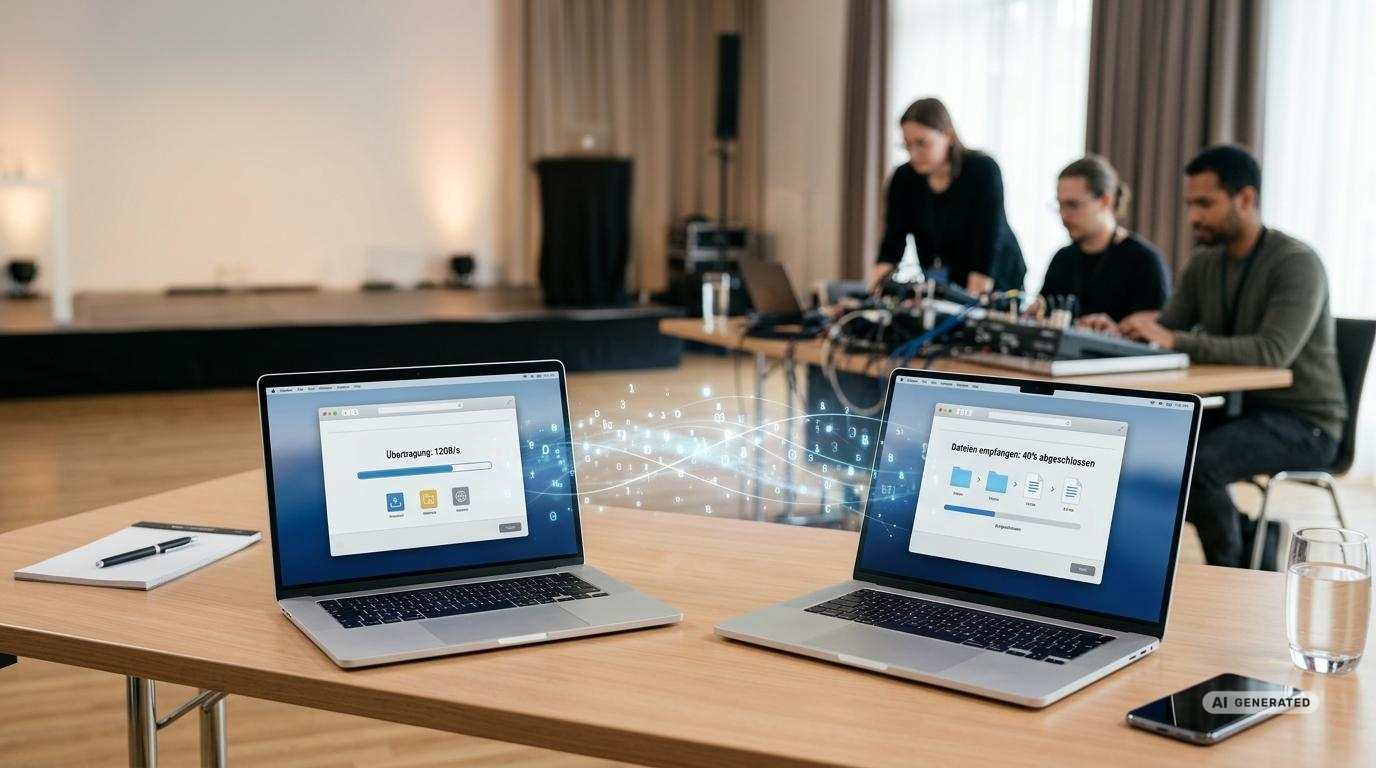
At events, presentations, videos, attendee lists, graphics, configuration files, and updated schedules often need to be available on multiple computers within just a few minutes. A USB flash drive may seem convenient at first, but it quickly becomes a bottleneck in the hectic pace of an event. It can get misplaced, has to be passed from workstation to workstation, and poses additional security risks if its origin is unknown.
Modern operating systems, local networks, and cloud-based platforms offer significantly more flexible options. Which method is best depends on the file size, the number of devices, the existing infrastructure, and security requirements. Whether a stable internet connection is available on-site also plays an important role.
This article shows how event teams in 2026 can transfer files without a USB flash drive, which solutions are suitable for different scenarios, and how typical problems can be avoided as early as the technical planning stage.
Why USB Drives Shouldn’t Be the First Choice for Events
A single storage device may be sufficient for small tasks. However, as soon as multiple presentation computers, control stations, check-in stations, or mobile workstations are involved, unnecessary wait times arise. While a file is being copied, no one else can access the storage device. Furthermore, it’s often unclear which computer contains the current version.
Added to this is the issue of IT security. Removable media can carry malware or inadvertently contain confidential data. At events, internal employees, external service providers, agencies, speakers, and technicians often work together. A clearly defined digital file transfer process helps limit access and make responsibilities more traceable.
Avoiding the use of USB drives does not mean that every file must be sent over the internet. Local transfer methods that work even with limited internet connectivity are particularly useful for event teams.
A Comparison of the Most Important Methods
| Method | Suitable for | Internet required | Strengths | Points to Note |
|---|---|---|---|---|
| Windows Network Sharing | Sharing Individual Files Between Windows PCs | No | Integrated directly into the operating system | Devices must be properly configured and located nearby |
| AirDrop | Sharing files within an Apple ecosystem | No | Quick sharing between Mac, iPhone, and iPad | Not intended for Windows PCs |
| Cross-platform local apps | Mixed device fleets | No | Transfer between Windows, macOS, Linux, and mobile devices is possible | Installation, firewall, and network shares must be set up |
| Cloud Storage | Remote Teams and Shared Documents | For synchronization, yes | Version control, permissions management, and location-independent access | Depends on bandwidth, accounts, and sharing settings |
| Network folder or NAS | Many PCs at an event venue | No | Centralized storage and structured access | The network, user permissions, and data backup must be set up |
| Direct Ethernet Connection | Large files and stable transfers | No | High speed and low susceptibility to interference | Network adapter, cable, and IP configuration must be compatible |
| Bluetooth | Small files in exceptional cases | No | Available on many devices | Usually too slow for large videos or large folders |
Windows Environment Sharing for Quick File Exchange
If an event team primarily uses Windows PCs, the built-in Windows neighborhood sharing feature is a simple solution. It allows you to send documents, images, and other files to nearby computers. Bluetooth is used for device discovery. With the proper configuration, the actual transfer can take place over Wi-Fi.
The feature is enabled on both the sender and receiver in the system settings. Event teams should limit visibility to their own devices or a controlled group of people whenever possible. Open sharing with all devices in the vicinity is not recommended in a trade show hall or convention center.
In File Explorer, you can then select the desired file and send it to a detected PC via the Share menu. The recipient confirms the request and specifies where the file will be saved. This method is particularly well-suited for last-minute transfers, such as when an updated presentation needs to be transferred from the organizational computer to the stage computer.
When distributing a large media package to numerous devices, sharing via the local network is less efficient. In this case, a network folder, a local server, or a preconfigured cloud synchronization solution is usually a better option. For temporary device fleets, you should also ensure that Windows 11 is securely configured before deployment.
AirDrop in Apple Environments
If Macs, iPads, or iPhones are used at an event, AirDrop offers a similarly straightforward approach. The devices recognize each other via Bluetooth and transfer data over a direct wireless connection. An active internet connection is not required for this.
AirDrop is ideal, for example, for sending graphics from an iPhone to a Mac, sharing presentations between two MacBooks, or transferring photos directly to a workstation for social media management. Suitable Apple MacBooks for rental can be configured on a project-by-project basis for such homogeneous work environments. Before the event, you should specify which devices are allowed to receive files. The setting for known contacts or a time-limited sharing option is preferable to permanently open visibility.
In mixed teams, AirDrop reaches its limits because Windows devices aren’t directly integrated. As soon as different operating systems are involved, a cross-platform solution should be planned. The article on Apple and Windows in event operations also provides a comparison of typical use cases.
Local File Transfer Between Different Operating Systems
Many event setups consist of a mix of Windows laptops, Macs, tablets, and smartphones. For such environments, there are applications that transfer files over the local network. A well-known example is LocalSend. The application is available for multiple desktop and mobile platforms and does not require an external cloud service for the actual transfer.
All participating devices must be on the same local network. The application detects reachable recipients and can send individual files or entire folders. Data is transmitted in encrypted form over the local connection. Nevertheless, event teams should only use approved applications and carefully verify recipients before sending.
This method may be blocked on public guest Wi-Fi networks. Many event networks use what is known as “client isolation.” With this setup, connected devices can access the internet but cannot communicate directly with one another. Local firewalls can also prevent device detection. A dedicated Wi-Fi router for rental or a separate production network provides better conditions in this scenario.
Cloud Storage for Distributed Teams and Shared Files
Cloud platforms such as OneDrive, SharePoint, Google Drive, or comparable enterprise solutions are suitable when files are prepared in advance of the event or when multiple locations are involved. The major advantage lies not only in file transfer. Teams can manage central folder structures, permissions, versions, and sharing periods.
For example, a production folder can contain subfolders for presentations, videos, speaker materials, admission, press, and technical support. Each work area is granted only the necessary access rights. Changes are synchronized as soon as a suitable connection is available.
For event operations, it’s important to save critical files locally on devices in advance. Files that are only available online may not be accessible if the internet connection fails. Presentations, admission lists, schedules, and media content should therefore be marked for offline use well in advance and then tested.
Large uploads during the event should be avoided whenever possible. An overburdened event management team or an unstable guest Wi-Fi network can significantly delay transfers. It is better to synchronize large data packages before setup and to use the cloud during the event primarily for minor updates.
Network folders and NAS for multiple workstations
When multiple PCs need to access the same data, a central network folder is often the most organized solution. This can be set up on a dedicated computer, a local server, or a NAS system. The devices then access a shared folder structure via the local network.
This type of setup is particularly useful for accreditation, training sessions, exams, press centers, and multi-day events. Instead of sending files multiple times, the team in charge stores the latest version in a central location. Write permissions can be restricted to a few individuals, while other workstations are granted read-only access.
The network share should not be visible to every participant on the event network without restriction. It is advisable to use individual user accounts, secure passwords, and clearly defined access groups. If a dedicated router is used, production equipment can also be isolated from guests, visitors, and public access points.
Direct Ethernet Connection for Large Data Volumes
For very large video files, high-resolution graphics, virtual machines, or extensive software packages, a wired connection is often the most reliable method. Two computers can be connected directly via Ethernet or integrated into a local network via a compact network switch.
Data is then transferred via a network share. Under good conditions, modern Gigabit connections offer significantly better performance than Bluetooth and are less susceptible to radio interference. For particularly data-intensive productions, faster network adapters and suitable switches may be advisable. The article on setting up a temporary 10-Gigabit network provides guidance for complex temporary infrastructure setups.
A direct cable connection must be tested before use. This includes IP configuration, firewall rules, sharing permissions, and the actual transfer speed. Adapters for devices without a standard network connection should also be factored into the plan.
A Dedicated Wi-Fi Router as a Mobile Transmission Hub
Event teams should not rely exclusively on the venue’s Wi-Fi. A dedicated router can provide a local production network through which laptops, tablets, smartphones, and a NAS can communicate with one another. Internet access is not strictly necessary for local file transfers.
This solution offers greater control over the network name, password, frequency band, and connected devices. At the same time, a mobile router can provide an internet connection via cellular data or an existing venue connection if needed. A 4G/LTE battery-powered router, for example, can be considered for mobile scenarios. Whether its performance is sufficient for a specific application depends on the number of users, data volume, building layout, and available network connectivity.
For larger teams, it’s helpful to separate different areas of responsibility. Event management, check-in, speaker support, and guest devices should not operate on the same network unless there’s a good reason to do so. Proper network planning reduces interference and limits unnecessary access. For additional planning tips, see the guide on Wi-Fi, network design, and secure guest access at events.
Why Bluetooth Is Only a Last Resort
Bluetooth file transfer works without an internet connection and is available on many devices. For small text documents, individual images, or a compact configuration file, it can be helpful in exceptional cases. However, for large presentations, videos, or entire project folders, the transfer often takes too long.
In addition, device pairing and different operating systems can complicate the process. If an event is running on a tight schedule, Bluetooth should therefore not be planned as the primary transfer method. It’s better suited as a backup option for small files.
Transferring Files Faster: Practical Tips
- Bundle many small files: A compressed archive can often be transferred faster and more efficiently than several thousand individual files.
- Use the appropriate frequency band: A high-performance Wi-Fi network in the 5 GHz or 6 GHz range can enable high data rates, provided that the devices, routers, and environment are compatible.
- Minimize distance: Walls, trade show booths, and numerous wireless networks can interfere with the connection.
- Transfer large amounts of data via a wired connection: For large media packages, Ethernet is often easier to plan for.
- Check storage space: The destination computer needs sufficient free storage space for the file, the archive, and any extracted content.
- Limit background processes: Simultaneous updates, cloud syncs, and video streams can reduce available bandwidth.
- Name files appropriately: Version number, date, room, and intended use help prevent confusion.
Security and Data Protection in File Transfer
Event files may contain personal data, internal schedules, contract information, or unpublished media. Therefore, the most convenient transfer method is not necessarily the best solution. Before the event, it should be clarified which categories of data will be processed and who is authorized to access them.
Open file shares should remain active only as long as they are actually needed. For cloud folders, sharing with specific accounts is usually easier to control than using publicly accessible links. Edit permissions should be granted only to individuals who need to modify files. Read-only permissions are sufficient for other team members.
For sensitive archives, additional encryption may be advisable. The password should be transmitted via a separate communication channel. It is also recommended to check received files before use and to use software exclusively from trusted sources.
After the event, temporary accounts, sharing links, local users, and network access should be removed. Data that is no longer needed must be deleted in accordance with internal data protection guidelines. For rented devices, get-IT-easy can also arrange for certified data erasure upon request. Additional recommendations are provided in the article on the secure deployment and data erasure of event hardware.
A Robust File Workflow for Event Teams
- Prepare files centrally: The team establishes a standardized folder structure and clear file names.
- Determine the primary method: Depending on the environment, choose between cloud storage, network folders, a local transfer app, or Ethernet.
- Plan a backup option: A second transfer option is available in case Wi-Fi or the Internet goes down.
- Create offline copies: Critical presentations, admission data, and schedules are stored locally.
- Test devices in advance: All PCs are equipped with the necessary applications, accounts, network profiles, and permissions.
- Designate responsible parties: Only designated individuals may replace critical files or publish new versions.
- Conduct a follow-up: Access rights are deactivated, and temporary data is carefully deleted.
For larger productions, it is recommended to integrate this process into a comprehensive hardware rollout for events. This allows for the joint planning of configuration, logistics, responsibilities, and return procedures.
The Right Hardware for Seamless Data Exchange
A well-designed transmission method will only function reliably if the devices used are suited to the project. Depending on the scenario, you’ll need high-performance rental laptops, sufficient local storage, suitable Wi-Fi adapters, routers, network switches, mobile devices, and the appropriate accessories.
For short-term events, the rental of the necessary IT hardware can reduce the organizational burden. get-IT-easy puts together equipment on a project-by-project basis and can provide laptops, computers, tablets, smartphones, routers, displays, and accessories. Pre-configurations—including applications, user accounts, settings, SIM cards, or project-specific network parameters—are also possible upon request. The appropriate configuration for rental devices can be included as a custom add-on service.
The appropriate equipment depends, among other things, on the number of units, rental duration, event location, file size, operating systems, and desired network structure. Event teams can use the inquiry form to submit their requirements and will then receive a customized quote via email. Starting prices are for reference only. The actual rental price is determined based on the specific requirements.
FAQ on File Transfer Without a USB Drive
What’s the easiest method for two Windows PCs?
For individual files, Windows network sharing is a good option. Both computers must have this feature enabled and should be located nearby. For large folders, network sharing may be more efficient.
Can I transfer files without an internet connection?
Yes. Windows File Sharing, AirDrop, local transfer apps, a network folder, and a direct Ethernet connection all work within a local network even without internet access.
How do I transfer files between a Mac and a Windows PC?
You can use a cross-platform local transfer app, a shared cloud folder, a NAS, or a properly configured network share. AirDrop alone cannot directly connect to a Windows PC.
Which solution is best for very large video files?
A wired Ethernet connection or a fast local network is generally more reliable than Bluetooth or a heavily loaded event Wi-Fi network. The actual speed depends on the network adapter, cable, switch, drive, and file structure.
Why can’t devices find each other on the event Wi-Fi network?
Client isolation often prevents direct communication between participants’ devices. Firewall rules, different networks, or disabled sharing features can also be the cause. A dedicated production network can solve this problem.
Should event files also be stored locally?
Critical files should be available and tested on the necessary devices before the event begins. This ensures that operations can continue even in the event of a weak internet connection or a temporary cloud outage.
Can rented hardware be delivered already set up?
Depending on the project, applications, user accounts, settings, SIM cards, routers, and other requirements can be preconfigured. The scope, device selection, and process are tailored to each individual case.
Conclusion
Event teams don’t necessarily need a USB flash drive for quick file sharing. Individual files can be sent using built-in sharing features or local file transfer applications. Cloud storage supports distributed teams and collaborative editing. Network folders and NAS systems provide a central data repository for multiple workstations. For large amounts of data, a wired connection offers additional stability.
It is crucial not to improvise the setup during the event itself. Operating systems, permissions, network access, offline files, and backup routes should be set up and tested in advance. With the right laptops, mobile devices, routers, and network components, you can create a flexible infrastructure tailored to the specific application. Event teams can request the necessary IT hardware from get-IT-easy on a project-by-project basis and work together to plan the appropriate configuration.
Read more - You may also be interested in
Would you like to delve deeper into the topic or discover similar content? Below, we have compiled three additional articles for you that are thematically related to this article. These may also be relevant and interesting for your company.

Leasing Solutions for Businesses
Rental vs. Buying Trade Show and Event Hardware: Costs, Flexibility, and Typical Setups for Businesses
Rental of trade show and event equipment instead of buying it: Cut costs, stay flexible,
Sep

Leasing Solutions for Businesses
Bring-Your-Own-Device vs. Rented Devices: When Each Strategy Is Worth It for Doctoral Programs
BYOD or Rented Devices? 📱 Find out which strategy is best for promotions in 2026—considering
Aug

Leasing Solutions for Businesses
TV/Display Rentals for Trade Show Booths & Events: Resolution, Mounts/Stands, Setup & Data Protection
TV and Display Rentals for Trade Show Booths and Events: Tips on resolution, mounts, stands,
Aug
Guide
Transfer Data Quickly Between PCs Without a USB Drive: Simple Methods for Event Teams
Transfer data quickly between PCs without a USB drive: simple, secure methods for event teams—from
Aug

Technology Trends
EUDI Wallet & Digital Identities: Potential Applications for Check-In, Access Control, and Verification at Events
EUDI Wallet at Events: Digital identities for fast check-in, secure access control, and reliable verification.
Aug
Sustainability
Making Packaging & Logistics Sustainable: Reusable Shipping Containers, Return Shipping Processes, and CO2 Reduction
📦 Making Packaging & Logistics Sustainable: Reusable shipping boxes, efficient return processes, and lower CO₂
Aug

Technology Trends
5G & Alternative Event Internet: Wi-Fi/5G Setup, VoWiFi, and Stratospheric Internet—What’s Realistic?
A Look at Internet for Events in 2026: 5G, Wi-Fi Setup, VoWiFi, and Stratospheric Internet.
Jul

Guide
Secure Wi-Fi on the Go & at Events: Which Smartphone/Hotspot Features You Should Disable and Why
Secure Wi-Fi on the Go & at Events: These Smartphone & Hotspot Features You Should
Jul